Using the DDNP
How to cite this page (MLA): Gibson, Anna and Adam Grener. “Using the DDNP.” Digital Dickens Notes Project. Anna Gibson and Adam Grener, dirs. 2022. Web. http://dickensnotes.com/usage/guide/
General Overview
The DDNP invites users into the dynamics of Dickens’s compositional process and facilitates new modes of accessing the temporalities of Victorian serial form. However, there is no single way to use the DDNP. In the same way that Dickens’s use of the Working Notes was indexical and non-linear, our presentation of transcriptions of the Notes in this digital environment enables users to explore their significance in many different ways. Users can:
-
examine a complete set of transcribed Notes as a record of a novel’s unfolding architecture during its serial composition;
-
trace threads of plot development or character combination across and through a set of Notes;
-
analyze the transcription of a single Working Note in relation to its published installment;
-
or compare Dickens’s use of the Notes across novels to find patterns or developments in his navigation of serial form.
You can access the transcriptions and annotations of the Working Notes for each novel included in the project through the novel’s landing page, which includes a critical introduction to the novel and its Working Notes. The General Introduction provides an overview of Dickens’s career, the Working Notes, and Victorian seriality. Our Scholarly Introduction explains how the DDNP intervenes in scholarship on Dickens’s compositional practice and serial form.
Educators can visit the Teaching with the DDNP section to explore how to incorporate the Working Notes and the DDNP into the classroom. The “About the Project” menu contains links to information about our Project team, our editorial and transcription methodology, the technical specifications of our website, and a bibliography of scholarly resources on Dickens and Victorian serial form.
Viewing Transcriptions and Annotations in Mirador
The DDNP’s transcriptions and annotations of the Working Notes are displayed using Mirador, an open-source image viewing platform. We present our transcriptions of each Working Note as an image that users can read and interact with in this platform. Users can move the image within the viewing window using their cursor, and zoom in or out by scrolling with their mouse or touchpad. For users on mobile devices, these functions can be performed using the touch screen.
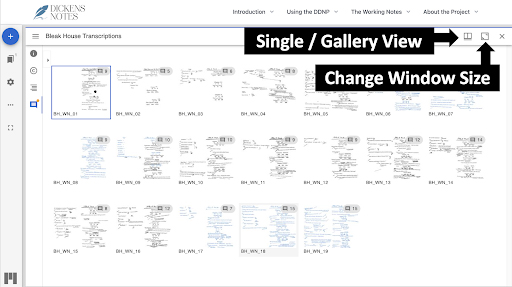
The view menu allows users to access thumbnails of all the Working Notes for a novel or to display a single transcribed page of the Notes. This menu also allows users to display thumbnails at the bottom or on the right of the Mirador viewer, a function that defaults to “off” to maximize space in the viewing window.
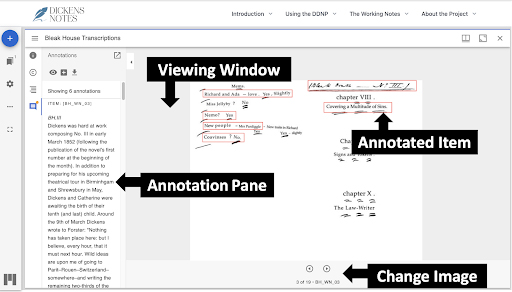
To navigate to the next page of a novel’s Working Notes, users can click on the Change Image arrows at the bottom of the page or use the Index in the sidebar to select an installment number.
Annotations are indicated by a box around an item on the Working Note, although users can also explore the contents of a Working Note without annotation boxes by clicking the “Highlight all / none” icon. If “Highlight none” is chosen, the annotation box will still appear if your cursor moves over an annotated item. In either view, clicking on an annotation box will bring up the accompanying commentary in the annotation pane.
The annotation pane can be resized for ease of reading by dragging the division between the annotation pane and the viewing window with a cursor or, on a mobile device, a finger.
All annotations are labeled using the following system for the purposes of citation and reference:
[novel abbreviation].[Working Note number].[annotation number]
For example, the label DC.VII.R2 would indicate: David Copperfield, Working Note VII, and the second annotation on the right-hand side of the Note (moving top to bottom). Annotations also repeat the text (or content) on the Note being annotated in bold for clarity.
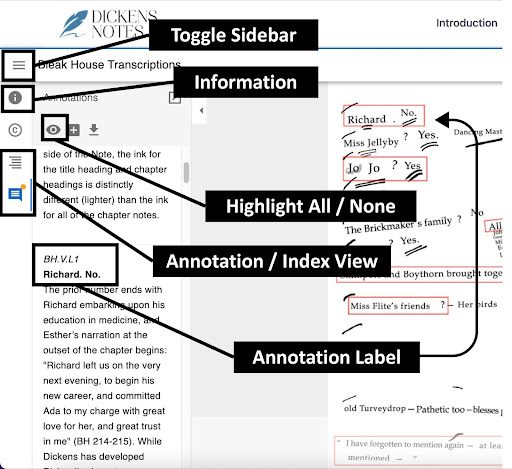
Mirador provides users with several options for customizing their user experience and accessing different elements of the displayed images.
-
Toggle Sidebar — collapses or expands the sidebar and annotation pane
-
Information — provides further information about the image displayed, including a link to the manifest
-
Highlight All / None — the small eyeball icon allows users to display or hide annotation boxes on the image
-
Annotation / Index View — the index view brings up a list of items (i.e., a list of the transcribed Working Note images) in the sidebar; the annotation view displays the annotations pane for a given image
-
Annotation Label — all annotations have a label for reference and citation purposes; the label provides a unique identifier for each annotation on the site (here: BH.V.L1), while the text in bold (here: Richard. No.) identifies the content of the Note being annotated
Searching the DDNP
TODO
To learn more about the technical specifications and design of the DDNP website, visit the Colophon.